
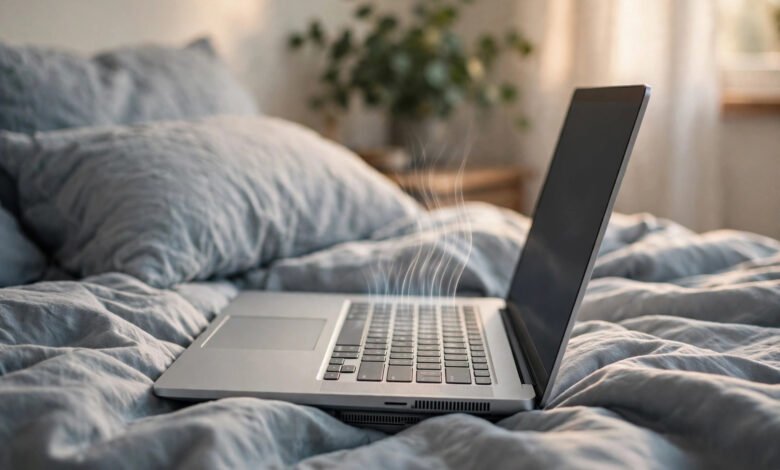
Using an HP laptop on bed for a few minutes is fine, but you should not make a habit of it. HP itself says to use its laptops only on a hard, flat surface, because a bed blocks the air vents and traps heat inside the machine. Over time, that extra heat makes the fan louder, slows the laptop down, wears the battery out faster, and in rare cases creates a real safety risk.
Is It Bad to Use an HP Laptop on a Bed?
Yes, it is bad for the laptop, and HP says so plainly. The safety warning printed in HP laptop user guides and service guides reads: do not place the computer directly on your lap or obstruct the computer air vents, use the computer only on a hard, flat surface, and do not allow a soft surface such as pillows, rugs or clothing to block airflow. The same warning covers the AC adapter, which should also not rest on a soft surface while it is running.
HP repeats the warning across its current laptop guides, from the HP 14 and HP 17 to the OMEN gaming range.
A short session will not destroy your laptop. The problem is the habit: every time the vents are blocked, the laptop runs hotter than it was designed to, and heat slowly wears its parts out.
Why a Bed Blocks Your Laptop’s Cooling
A laptop cools itself with air. Most HP laptops pull cool air in through vents on the bottom or sides and push hot air out through exhaust vents, and the fan starts automatically to keep the internal parts cool.
A bed breaks that system in two ways. First, a mattress, duvet or pillow is soft, so it moulds around the laptop and seals the intake vents shut, leaving the fan almost no cool air to pull in. Second, the bedding traps the heat that does escape, warming the air around the laptop instead of letting it disperse. On a desk, the same laptop breathes freely. When you use an HP laptop on bed, it sits in a pocket of its own hot air.
Bedding adds one more problem: dust and lint. A fan pulling air through bedding drags fibres into the vents, and over months that build-up narrows them further, so the laptop runs hotter even back on a desk. HP advises cleaning the vents with compressed air.
What Happens When the Vents Are Blocked
The first sign is usually noise. The fan spins faster and louder as it tries to compensate for the missing airflow, so if it roars during light work such as browsing or watching a video, blocked vents are one of the first things to check.
The second sign is slower performance. Modern processors protect themselves from heat by slowing down, a process called thermal throttling. When the chip approaches its maximum safe temperature, it lowers its own clock speed so it produces less heat. Intel calls that limit TjMax, and many recent Intel laptop chips set it at around 100 degrees Celsius. The laptop does not break, but it deliberately runs slower, so apps take longer to respond and videos stutter. Many people blame an ageing laptop when the real cause is a blocked vent.
If the heat keeps climbing despite throttling, the laptop may shut itself down without warning, a last line of defence. A laptop that shuts down on a bed will usually run fine on a desk, which tells you the surface was the problem.
Repeated heat also shortens the life of the parts inside. Processors, graphics chips, storage drives and the motherboard all age faster when they spend long periods hot. None of this happens after one evening in bed, but months of working from bed add up.
If the fan is loud even on a desk with clear vents, something else may be wrong. A program working hard in the background can heat a laptop up just as surely as a blocked vent, so it is worth learning how to check what is running on your own computer.
Does Using a Laptop on a Bed Damage the Battery?
Yes, heat is one of the fastest ways to wear a laptop battery out. HP laptops use lithium-ion batteries, and the chemistry inside them ages faster when it gets hot, so a battery that spends its life running hot will hold less charge and the laptop will run for fewer hours away from the charger.
Apple’s battery guidance explains the same lithium-ion chemistry: a battery warms up as it charges, which can reduce its lifespan, and devices perform best at 16 to 22 degrees Celsius. Apple advises against using or charging a device above 35 degrees Celsius, because that can permanently reduce battery lifespan. A laptop on a bed easily runs hotter than that, since the battery sits next to the hot processor.
Dell gives a harder limit: do not expose a computer or battery pack to temperatures above 65 degrees Celsius, because overheated battery cells could vent or explode, posing a risk of fire. That is an extreme case, not a normal one, but it shows why manufacturers treat heat around batteries so seriously.
A swollen battery is the warning sign to take seriously. If the laptop case bulges, the trackpad feels raised, or the keyboard no longer sits flat, stop using the laptop and get it checked by a qualified technician. Do not try to puncture, squeeze or repair a swollen battery yourself.
Can an HP Laptop on a Bed Catch Fire?
A laptop sitting on a bed does not automatically catch fire, and that is worth saying plainly, because the risk is often exaggerated. A healthy laptop with a healthy battery will throttle, slow down or shut itself off long before it reaches a dangerous temperature.
The risk becomes real when heat meets a second problem: a damaged or swollen battery, a faulty charger, or a third-party charger that has not passed safety tests. Dell states it directly: restricting airflow can damage the computer or cause a fire. The National Fire Authority of Fiji warns people not to use a laptop in bed or on a sofa for a long time, especially while charging.
The most dangerous habit is leaving a running laptop buried under blankets or pillows, or charging it on a bed overnight while you sleep. Nobody is watching it, the heat keeps building, and the bedding around it is flammable.
If your laptop ever smells strange, feels far hotter than usual, or the battery looks swollen, switch it off, unplug it, and do not use it again until a technician has looked at it.
How to Use Your HP Laptop on a Bed Safely
If you want to keep working from bed, you do not need to give up the habit entirely. You need to give the laptop air.
Use a lap desk, a hard, flat board, often with a cushion underneath, that sits between the laptop and the bed and keeps the vents clear. A cooling pad does the same job with built-in fans that push air underneath the laptop. Fire safety guidance recommends both: PuroClean says to use a hard, flat surface like a lap desk if you must work in bed, and the National Fire Authority of Fiji recommends a chill pad or cooler designed for laptops. Even a laptop stand or a large hardcover book is better than a bare mattress, as long as the vents stay uncovered.
Keep the vents clear and clean. Check the bottom and sides of your laptop and make sure no blanket edge is tucked against an opening. Every few months, blow the dust out with short bursts of compressed air, as HP recommends, with the laptop switched off.
Do not cover the laptop while it is running, and never leave it running under a duvet or pillow. Do not let the charger brick sit on the bed either, since HP warns that the adapter also needs airflow.
Charge on a hard surface too. Charging adds heat, so a laptop that is both charging and sitting on a bed runs hotter than one doing either thing alone.
Better Alternatives to Working from Bed
The simplest fix is a desk or table, even a small one beside the bed. It costs nothing and it is what HP recommends. If space is tight, a bedside tray table or folding laptop table does the same job.
A laptop stand is a good middle ground. It raises the screen to a more comfortable height, which is better for your neck, and it leaves the underside open to the air.
Frequently Asked Questions
Can I use my HP laptop on my bed?
You can for a short time, but HP says not to. Its safety warning tells users to use the laptop only on a hard, flat surface and not to let a bed, pillow or blanket block the air vents. For regular use, put a lap desk or cooling pad under it.
Will using an HP laptop on bed damage it?
One session will not, but regular use can. Blocked vents cause overheating, louder fans, slower performance from thermal throttling, faster battery wear and a shorter life for internal parts. Dust and lint from bedding make it worse over time.
Why does my HP laptop fan get loud on a bed?
The fan spins faster because the vents are blocked. HP’s advice is to move the laptop to a hard, flat surface and check that no bed, blanket or pillow is blocking the vents.
Does using a laptop on a bed ruin the battery?
Heat speeds up the chemical ageing inside lithium-ion batteries, so a battery that regularly runs hot loses capacity faster. Apple advises against using or charging devices above 35 degrees Celsius, because that can permanently reduce battery lifespan.
Can a laptop catch fire on a bed?
Not usually. A healthy laptop will slow down or shut off before it gets dangerously hot. The risk rises if the battery is damaged or swollen, the charger is faulty, or the laptop is left running or charging under blankets overnight.
What is the best way to use a laptop in bed?
Put it on a lap desk or a cooling pad, keep the vents uncovered, and do not let blankets cover it. Keep the charger on a hard surface too, clean the vents with compressed air every few months, and do not leave it running or charging on the bed overnight.
Conclusion
Using an HP laptop on bed feels harmless, and for a few minutes it mostly is. But HP’s guidance is clear: the laptop belongs on a hard, flat surface with its vents open. A bed blocks the airflow, the fan works harder, the processor slows itself down to stay safe, and the battery ages faster in the trapped heat. A lap desk or cooling pad solves the problem cheaply and keeps a laptop that should last years from wearing out early. If you love working from bed, keep the habit and change the surface, not the laptop.