
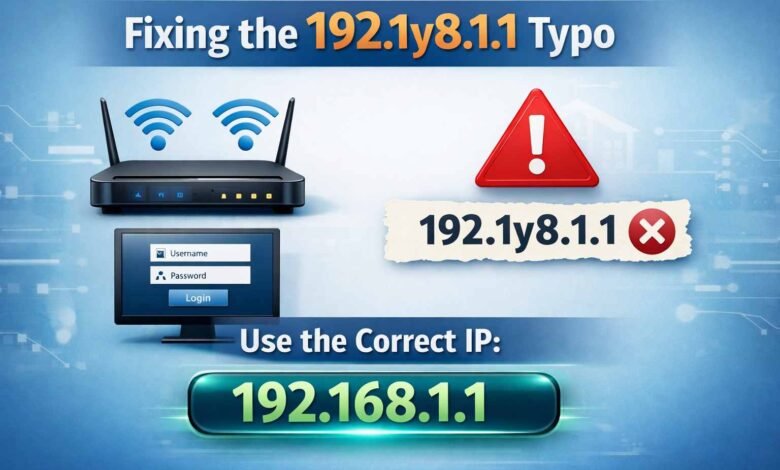
192.1y8.1.1 is a typo. The address you meant to type is almost certainly 192.168.1.1, the login page for many home routers. The problem is the letter y. IP addresses only contain numbers and dots, so 192.1y8.1.1 is not a valid address and no browser can open it. Type http://192.168.1.1 into the address bar instead, and if that does not work, find your router’s real gateway address using the steps below.
What Is 192.1y8.1.1?
192.1y8.1.1 is what happens when a finger slips while typing 192.168.1.1. The two look similar, but one small change breaks the whole thing. The letter y has no place in an IP address. An IPv4 address is four groups of numbers separated by dots, like 192.168.1.1, and each group must be a number between 0 and 255. The moment a letter appears, the address stops being an address. Your browser cannot guess what you meant, so it shows an error page or a web search instead.
That is all 192.1y8.1.1 is: a typing mistake. It is not a website, not a virus, and not a different kind of router address. Nothing on the internet lives at that address, and no router will ever answer to it.
What Is 192.168.1.1?
192.168.1.1 is the local address many home routers use as their admin page, also called a default gateway address. Your router sits between your home devices and the internet, and this is the address your devices use to talk to the router itself. When you type it into a browser, you are not visiting a website. You are opening a small settings page that lives inside your own router.
Three things are worth knowing. First, it is a private address. It only works inside your own network, and it means something different in every house. On your Wi-Fi, 192.168.1.1 is your router. On your neighbour’s Wi-Fi, it would be theirs. Second, it is the factory default for many routers, including common models from Linksys, Netgear and Asus, plus a large share of routers supplied by internet providers. Third, it is not the only default. Many TP-Link, D-Link and Tenda models use 192.168.0.1 instead, and others use 10.0.0.1 or a brand specific address. If 192.168.1.1 does nothing, your router probably uses one of those.
How to Log In to Your Router
Logging in takes about a minute once you have the right address. Here is how to do it.
- Connect to your router. Use its Wi-Fi network or plug in an Ethernet cable. The admin page only loads from inside your own network, so mobile data will not work.
- Open a browser. Any browser will do: Chrome, Firefox, Safari or Edge.
- Type the address into the address bar, not the search box. Type http://192.168.1.1 and press Enter. The http:// part matters, because most routers serve the admin page over plain HTTP, and a forced secure connection can fail. If your browser warns that the connection is not private, that is usually the router’s own self-signed certificate, which is expected on a local page like this.
- Enter the admin username and password. These are not your Wi-Fi password. Look for them on the sticker on the bottom or back of the router, or in the quick-start leaflet. Many newer routers print a unique password on the label, and some ask you to create your own at first login. Older models often used admin for both fields, but that is no longer the rule, so the label on your own router is always the most reliable source.
- Change what you need. Once you are in, you can change the Wi-Fi name and password, see connected devices, update the firmware, or set up parental controls.
If the login fails, do not keep guessing passwords. Check the label again, and check that caps lock is off, because router passwords are case sensitive. If nobody remembers the password, the only way back in is a factory reset, which is covered in the troubleshooting section below.
How to Find Your Router’s Real Address
Guessing is the slowest way to find your router. Your device already knows the answer, and it takes less than a minute to look it up. The value you want is called the default gateway on Windows, and simply Router on a Mac.
On Windows, press Win + R, type cmd and press Enter. In the Command Prompt window, type ipconfig and press Enter. Look for the line that says Default Gateway under your active connection, Wi-Fi or Ethernet. The number next to it, usually 192.168.1.1 or 192.168.0.1, is your router’s address.
On a Mac, open System Settings, then Network. Click your active connection, then Details, then the TCP/IP tab. The address shown next to Router is the one you need. On older macOS versions the path is System Preferences, then Network, then Advanced, then TCP/IP.
On an iPhone, open Settings, then Wi-Fi, and tap the small info icon next to your connected network. The Router field shows the address. On Android, open Wi-Fi settings, tap your connected network, then Advanced, and look for Gateway. The wording varies by phone brand.
If you would rather not use settings at all, check the sticker on the router itself. Most routers print the default address, along with the default username and password, on a label on the bottom or back.
Why 192.168.1.1 Does Not Open
If the correct address still does not load, work through these checks in order. Most problems turn out to be one of the first three.
You may be on the wrong network. Make sure your device is connected to the router you are trying to reach, not a neighbour’s Wi-Fi, a mobile hotspot, or mobile data. If you have a VPN running, turn it off for a moment, because it can send your traffic somewhere else entirely.
You may have typed the address into the search box instead of the address bar. Browsers treat text in the search box as a search query, so they show search results instead of your router page. Click the address bar at the very top of the browser window and type the address there.
Your router may use a different address. Read the default gateway from your device using the steps above. That number is always right for your network, and it saves you from guessing. Common alternatives are 192.168.0.1 and 10.0.0.1.
The page may be cached. If the browser shows an old error page, try a private or incognito window, or clear the browser cache for that address.
As a last resort, reset the router. If nobody knows the password and nothing else works, press the small recessed reset button on the back of the router with a pin and hold it for about ten seconds, until the lights blink. That restores the factory settings, but it also wipes your Wi-Fi name, password and any custom settings, so only do this when you are ready to set the router up again.
How to Keep Your Router Secure
A router guards everything on your home network, so a few minutes spent on security is time well spent.
Change the admin password first. If your router still uses a factory default, change it to a strong password that only you know. Anyone who can log in to the admin page can change your Wi-Fi password, see connected devices, and change the settings.
Use the strongest Wi-Fi encryption your router supports. On most modern routers that is WPA3, and on older ones it is WPA2. Avoid the older WEP setting entirely, because it is easy to break. If your router offers a choice, pick the strongest option listed.
Update the firmware. Router makers release updates that fix security holes, and many routers can check for them from the admin page. Check every few months, and turn on automatic updates if your router offers them.
Turn off remote management if you do not use it. Some routers let you manage them from anywhere on the internet, but that also exposes the login page to the whole world. Unless you genuinely need it, switch it off in the settings.
How to Avoid the Typo Next Time
Once you have the right address, make it hard to mistype again. Bookmark http://192.168.1.1 in your browser, so you can reach it with one click. Or use the app your router maker provides. TP-Link, Netgear, Asus and most other brands have a free phone app that opens the router settings without typing any address at all.
Frequently Asked Questions
What is 192.1y8.1.1?
It is a typo of 192.168.1.1, the address many routers use for their admin page. The letter y makes it an invalid IP address, so no browser can open it.
Why does 192.1y8.1.1 not work?
IP addresses only contain numbers and dots. Because 192.1y8.1.1 contains a letter, it is not a valid address, and the browser has nothing to connect to. Type 192.168.1.1 instead.
What is the default username and password for 192.168.1.1?
There is no single answer. Check the sticker on the bottom or back of your router, or the quick-start leaflet. Older models often used admin for both fields, but newer routers usually print a unique password on the label or ask you to create one.
What if 192.168.1.1 does not work?
Your router probably uses a different address. Find your real gateway address on Windows with ipconfig, on a Mac under TCP/IP settings, or on your phone in the Wi-Fi details. Common alternatives are 192.168.0.1 and 10.0.0.1.
Can I change my router’s IP address?
Yes. Most routers let you change the LAN address in the admin settings. Only do this if you have a reason, such as avoiding a clash with another device, and write down the new address, because the old one will stop working.
Is 192.1y8.1.1 a virus or a hacking attempt?
No. It is just a typing mistake, and it is harmless on its own. What you should watch out for is any website that claims to be a router login page and asks for your details, because a real router page only ever loads from your own network.
Conclusion
192.1y8.1.1 is a small slip of the fingers, and it confuses a lot of people, because it looks almost exactly like the real address. The real address is 192.168.1.1, and it opens the settings page inside your own router, where you can change the Wi-Fi password, check connected devices and update the firmware. If that address does nothing, your router simply uses a different one, and your device can tell you what it is in under a minute. Bookmark the right address, change the default admin password, and the typo will never slow you down again.