

Ever wonder why Microsoft Outlook still remains the top email client for global executives? The answer is simple. It provides a centralized, foolproof ecosystem not only for cross-platform communication but also for task management and calendaring. It is simply the best ecosystem for enterprise communication. The core strength behind this email client is Personal Storage Table (PST), a data file responsible for storing and managing Outlook data on the local device. It is portable. It can be moved and accessed on another system. Due to these features, PST files are widely considered great for archiving. But these user-friendly features also create problems for this crucial data file. With time, factors like large size and improper usage can make PST files prone to corruption. A damaged PST means a severe threat to the stored data.
Decoding Why PST is Prone to Corruption?
Outlook PST files are less secured than OST (Offline Storage Table) files. These files are also fragile. This is so because they store the entire Outlook data. Over time, factors such as large file size, improper shutdowns, or system issues can increase the risk of corruption. We will explore all these factors in detail in this guide titled “Why Your PST File Keeps Getting Corrupted & How to Fix It Permanently.” This post will provide the essential data about the consequences of PST corruption. We will also learn how to repair a damaged PST using ScanPST.exe. Additionally, we will also uncover a specialized Outlook PST Recovery Software.
Factors Responsible For PST Corruption:
In this part of the guide, we will explore factors that can damage Outlook data file (.pst). Check the below guide:
- An Oversized Data File: Every user is aware of file data size limits. In the latest version, this limit is 50GB in modern versions. Earlier, it was 20GB. If the file size surpasses this threshold, then corruption is inevitable.
- Instant Closure or System Crash: Improper shutdown can lead to corruption. Similarly, the forced closure of the application can damage the internal indexing of the PST, making the file unreadable or unstable.
- Malware Attacks: Malicious software is extremely dangerous. It can overwrite or delete critical hex code, which reduces Outlook’s ability to read the PST structure.
- Bad Sectors: In case, the PST file is saved across bad sectors, it can lead to corruption. It is because damaged sectors can prevent Outlook from reading file header or index tables.
- Network Issues: Outlook requires a stable network. If the user experiences network drops, it disturbs the PST sync process. It ultimately leads to malformed header.
- Interference by the Third-Party Plugins: Another major reason of PST corruption is conflicts by Add-ins. These plugins disturb the normal functioning of the application.
Signs of PST File Corruption:
A damaged PST means the following scenarios:
–The application crashes or freezes unexpectedly
— Popping up of error messages like error code: 0x80040116, or 0x80040600,
— The user started encountering messages like ABC.pst cannot be opened
— The user started experiencing missing email messages, contacts, or mailbox folders
— Halt in outgoing or receiving emails
What is the Solution?
After uncovering the causes as well as consequences, let’s move on to explore the solution for the error. In this part of the guide titled “Why Your PST File Keeps Getting Corrupted & How to Fix It Permanently,” we will unearth some methods that a user can try to prevent such a scenario. Follow the below guide:
Fix 1: Employing ScanPST.exe: It is the best free utility available to all Outlook users to repair a damaged PST. It runs many scans to understand the error. Then it diagnoses and repairs. The step-by-step process is listed below:
Follow the below steps:
- Close the Outlook app.
- After this find the utility on below locations:
| MS Outlook Version: | ScanPST.exe Location |
| 2016/2019/365/2021 | C:\Program Files (x86)\Microsoft Office\root\Office16 |
- So, the user has discovered the utility. The next task is to shut down other allied applications.
- Close other active processes as well, wait for some time.
- After this action, the next task is to browse the ‘Run’ dialogue. Press Windows + R keys for the same.
- Now write %programfiles%/Microsoft Office/ in the box. Press Enter.
- Choose the targeted PST file.
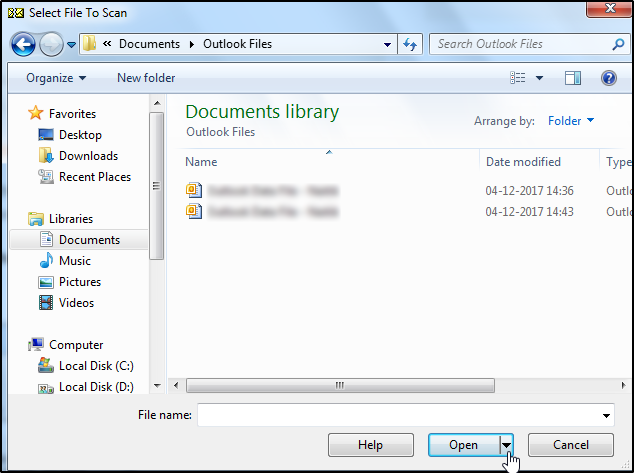
- Start the file scan process.
- This utility will highlight errors and inconsistencies in the Outlook data file (.pst).
- After inspecting errors, resolve them by pressing the ‘Repair’ button.
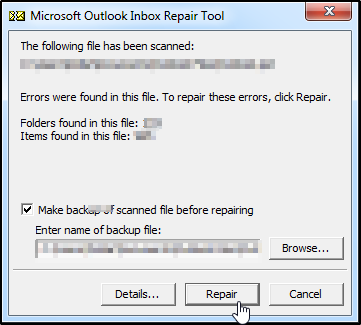
- Select the option to create the backup of the original file. Also tell the path where you want to save this backup file.
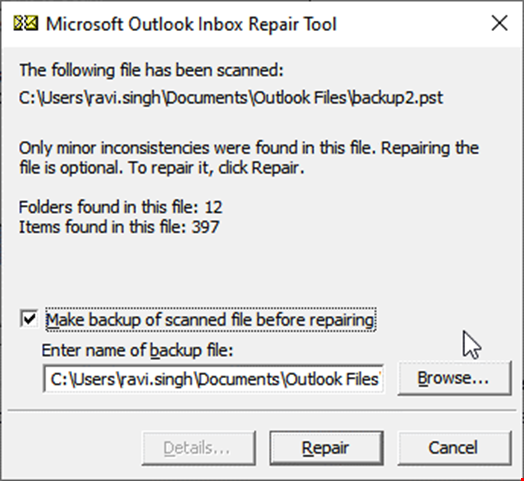
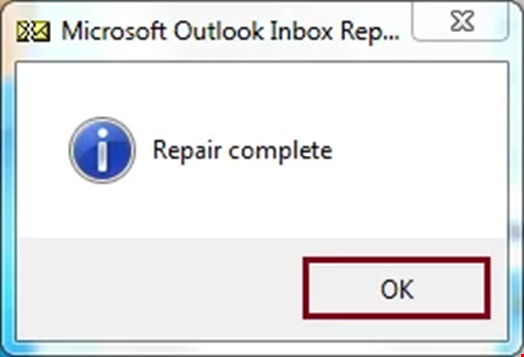
- After the completion of the repair process, check whether all email messages and other mailbox data are in order like before.
Fix 2: Create a New Outlook Profile: The next option before the user is to create a new Outlook profile. Check the below guide:
- Close the Outlook app.
- Exit from all allied processes as well.
- After this, open the Control Panel.
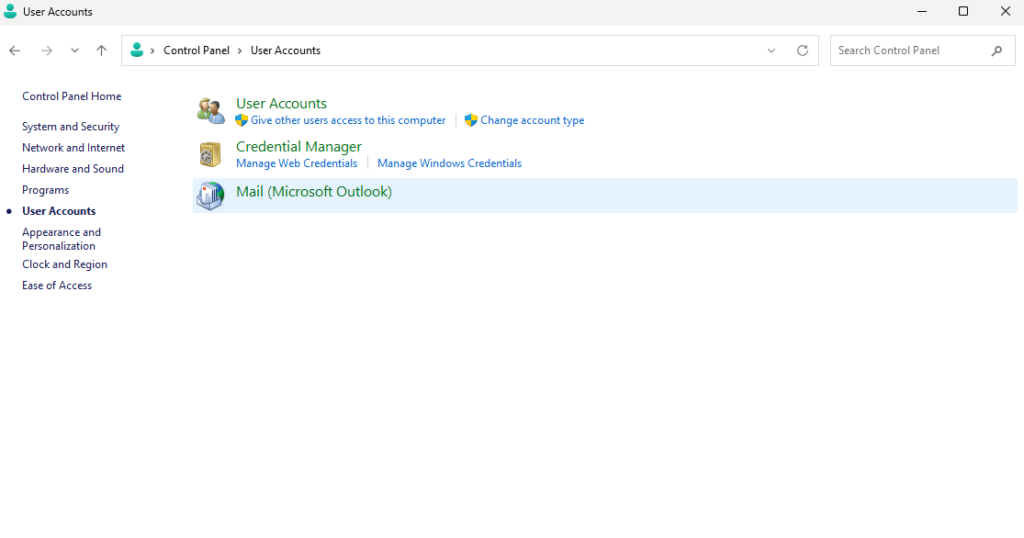
- Navigate to the User Account.
- Press on Mail (Microsoft Outlook).
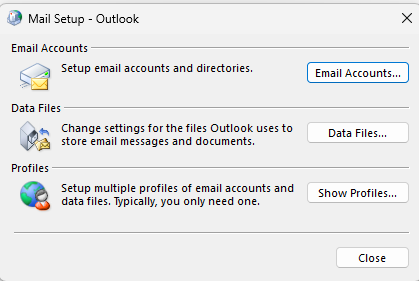
- A Mail Setup box will appear.
- Go to Show profiles.
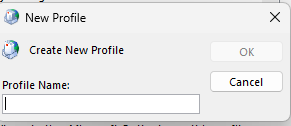
- Press Add profiles.
- Name your profile.
- Then press OK.
- Enter Email and password.
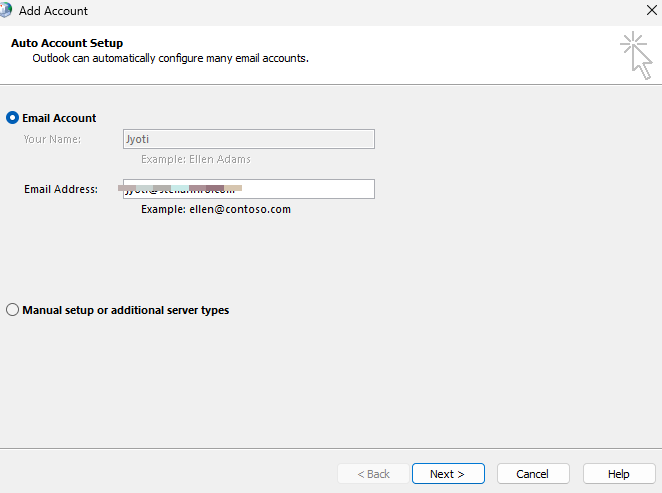
- Then hit on Next.
- After account configuration, press Finish.
- Return to the show profile.
- Now select a new profile.
- Choose the option reading “Always….. profile.”
- Then press Apply.
Limitations of Built-in Functionalities:
The above-discussed methods may fail in certain scenarios. In fact, these methods work in certain fixed scenarios. Even ScanPST.exe is capable of fixing minor PST structural inconsistencies. It may crash in case of fixing severe corruption issues like a malware attack.
Some other limitations of the above methods are listed below:
— The above methods may struggle to fix complex file structural inconsistencies
–They may completely fail to fix issues in an oversized PST
— They may fail to fix issues in “Orphaned” or Encrypted Files
— They may cause irreversible data loss as they remove broken file elements to restore functionality
— These functionalities not only require technical expertise, but also investment of ample productive time
What Approach Is Endorsed by Experts?
Many users often query “Which Technique Do Specialists Suggest?” Well, data safety must be the top priority of every user. Manual methods have some limitations. They also pose a threat to invaluable data stored in PST. Experts argue to avoid the risk element. They strongly advocate to utilize any Outlook PST Recovery Software. Such software is equipped with smart features. It is fast and reliable. Tools like Stellar Repair for Outlook can fix inconsistencies even in an oversized PST. It can recover deleted emails as well. Its ability to fix complex corruption scenarios is commendable. This software also provides a preview of your mailbox data before saving.
Benefits of Stellar Repair for Outlook:
— Gives a preview of your mailbox data before saving
— Provides export of the repaired file in varied formats (EML, MSG, RTF, etc.)
— Equipped with a friendly GUI and advanced filter option
— Capable of repairing a damaged PST of all sizes
— Recovers all mailbox items like including emails, attachments, contacts, etc.
Conclusion
Data file (.pst) corruption is a serious issue that can’t be ignored. The above guide titled “Why Your PST File Keeps Getting Corrupted & How to Fix It Permanently,” covers everything about PST corruption. We have uncovered reasons, consequences of this issue. The post also sheds light on ways to fix PST corruption. We have also learned that manual methods including repair using ScanPST.exe are effective only in certain scenarios. They are the best for fixing minor issues like header corruption or index table inconsistencies. However, manual methods fail miserably while fixing complex scenarios like fixing an oversized data file (.pst), or repairing a severely corrupted PST. It is here the need of a specialized Outlook PST Recovery Software arises. These tools can bypass password protection. They can fix corrupted PST of any size. Tools like Stellar Repair for Outlook are capable of retrieving permanently deleted items as well. The software is also equipped with an advanced filter option. It also offers a preview of your mailbox data before saving the file.
For more insights, read our article on: How to Know If Your Computer Is Being Monitored