

My Windows PC had slowly started feeling cluttered and less responsive over time. Programs took longer to open, storage space kept decreasing, and I noticed that even after uninstalling applications normally, something still remained behind. These leftover files and hidden components were affecting overall performance more than I initially realized.
That’s when I decided to try IObit Uninstaller, a tool designed specifically to remove unwanted software completely, including leftover files, bundled programs, and Windows apps that are difficult to manage through default system tools. My goal was simple: clean my system properly and remove everything unnecessary in one structured cleanup process.
Why I Decided to Use IObit Uninstaller?
I often install and test different applications for editing, productivity, and system optimization. Over time, many of these tools are removed, but Windows does not always clean everything completely. I noticed leftover folders, background entries, and unused components still present even after uninstalling programs.
While looking for a proper solution, I found IObit Uninstaller, which is designed to handle not just basic uninstallation but also deeper cleanup tasks like removing bundled software, browser extensions, and leftover traces.
What made me interested was its focus on complete removal rather than just uninstalling applications partially.
My First Experience Using the Tool
Installation and Setup
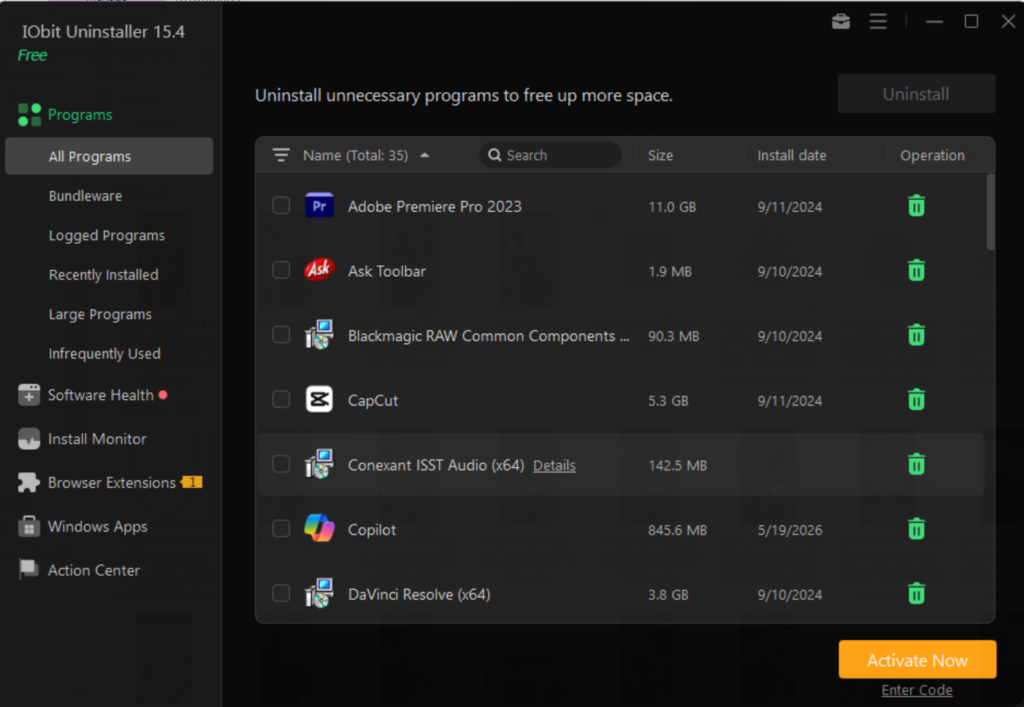
The installation process was quick and straightforward. After launching the software, I immediately noticed a clean interface that organized everything into clear categories such as programs, Windows apps, and browser extensions.
It did not feel complicated or technical, which made it easy for me to start exploring right away.
Organized Dashboard View
The dashboard displayed all installed applications in a structured way, allowing me to see recently installed programs, large software, and rarely used applications. This made it easier for me to identify what I actually needed and what was unnecessary.
Discovering and Removing Hidden Windows Apps
Windows Apps and Unused Programs
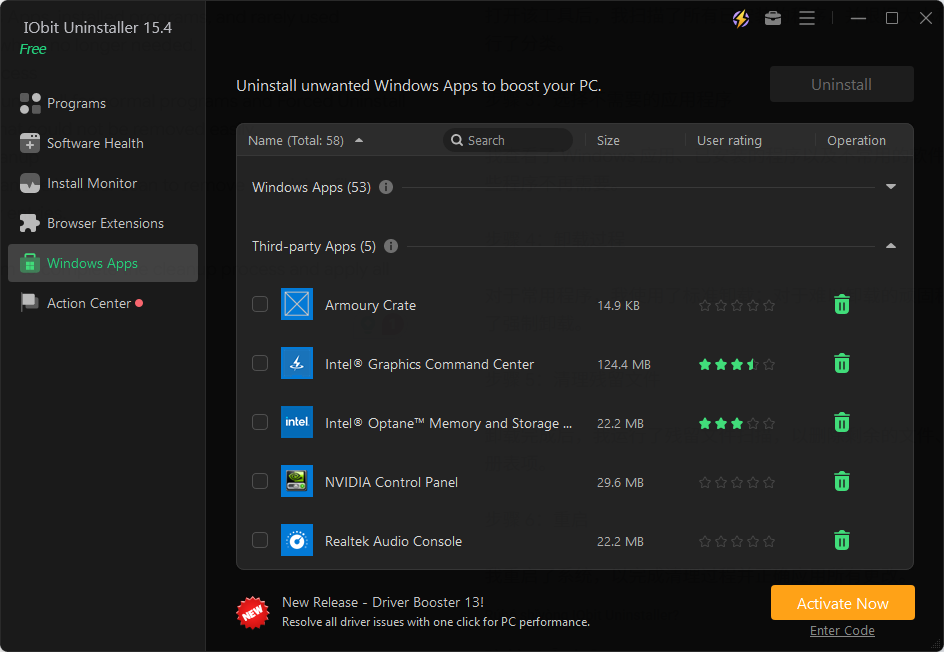
One of the first things I checked was the Windows Apps section. I was surprised to see several pre-installed and rarely used applications that I had never interacted with. Some of these were system utilities and small tools that were not essential for my daily usage. Using IObit Uninstaller, I selected multiple applications and removed them in one process instead of uninstalling them individually.
Forced Uninstall Feature
I also came across programs that were partially broken or difficult to remove using normal methods. The Forced Uninstall feature helped in removing those stubborn applications completely by scanning and clearing related files. This was particularly useful because some programs often leave traces even when they stop working properly.
Leftover File Cleaning and Deep Scan
Automatic Leftover Detection
One of the most useful parts of my experience was the leftover scanning feature. After uninstalling applications, the software automatically scanned for remaining files, folders, and system entries associated with those programs. This ensured that nothing unnecessary was left behind after removal.
Deep Cleaning Results
I found leftover data from applications I had removed months ago. These included temporary files and residual program folders that were still occupying storage space. Cleaning these leftovers manually would have taken a lot of time, but the tool handled it automatically in just a few clicks.
Browser Extensions and Bundleware Removal
Browser Add-ons Cleanup
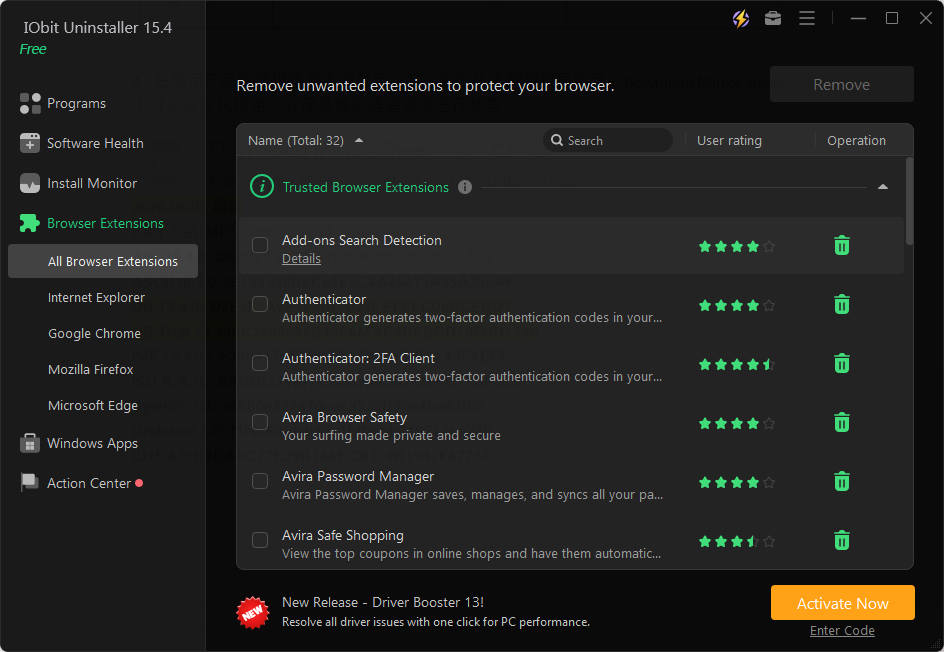
The software also displayed browser extensions installed in my system. I noticed several extensions that I no longer used. Removing them helped simplify my browser experience and reduced unnecessary background activity.
Bundleware Detection
Another useful feature was the detection of bundled software that sometimes gets installed alongside other applications. I was able to identify and remove such unwanted programs easily during the scan.
How I Used IObit Uninstaller Step by Step?
Step 1: Installation
I downloaded and installed the software from the official website and completed setup in a few minutes.
Step 2: System Scan
After opening the tool, I scanned all installed programs and categorized them based on size and usage.
Step 3: Selecting Unwanted Apps
I reviewed Windows Apps, installed programs, and rarely used software to decide what I no longer needed.
Step 4: Uninstall Process
I used the standard uninstall for normal programs and Forced Uninstall for stubborn ones that could not be removed easily.
Step 5: Leftover Cleanup
After uninstalling, I ran the leftover scan to remove remaining files, folders, and registry entries.
Step 6: Final Restart
I restarted my system to complete the cleanup process and apply all changes properly.
Changes I Noticed After Cleaning My PC:
- Improved Startup Performance: After cleanup, my system startup felt noticeably smoother and faster compared to before.
- Better Storage Management: I recovered storage space by removing leftover files and unnecessary applications that were no longer in use.
- Reduced Background Activity: With fewer unwanted applications and extensions, background processes also felt reduced.
- Cleaner System Organization: My PC felt more organized overall, with only the necessary applications remaining installed.
Advantages and Disadvantages:
What I Liked
- Complete Software Removal: The combination of standard uninstall and leftover cleanup ensured that applications were removed fully.
- Forced Uninstall Feature: This helped me remove stubborn or partially broken programs that could not be uninstalled normally.
- Leftover File Cleanup: Automatic detection of residual files saved time and improved system cleanliness.
- Simple User Interface: The tool was easy to navigate and did not require technical knowledge.
What I Didn’t Like
Some Features Limited in Free Version: Advanced features are not fully available without upgrading.
Deep Scan Takes Time: On systems with many applications, scanning leftovers can take some time.
Conclusion:
After using IObit Uninstaller, I can say my experience was genuinely effective in cleaning and organizing my Windows system. What started as a simple attempt to remove a few unnecessary programs turned into a full system cleanup where I discovered hidden Windows apps, leftover files, and bundled software that I had completely overlooked.
The most valuable part of this experience was the complete removal approach, where applications were not only uninstalled but also cleaned thoroughly afterward. This helped my system feel lighter and more responsive without requiring manual effort or advanced technical steps.
For more insights, read our article on: How to Know If Your Computer Is Being Monitored